How to Compress PDF Files Online
Learn when PDF compression helps, how to reduce PDF size online, and which related PDF tools are useful after compression.
Open Compress PDF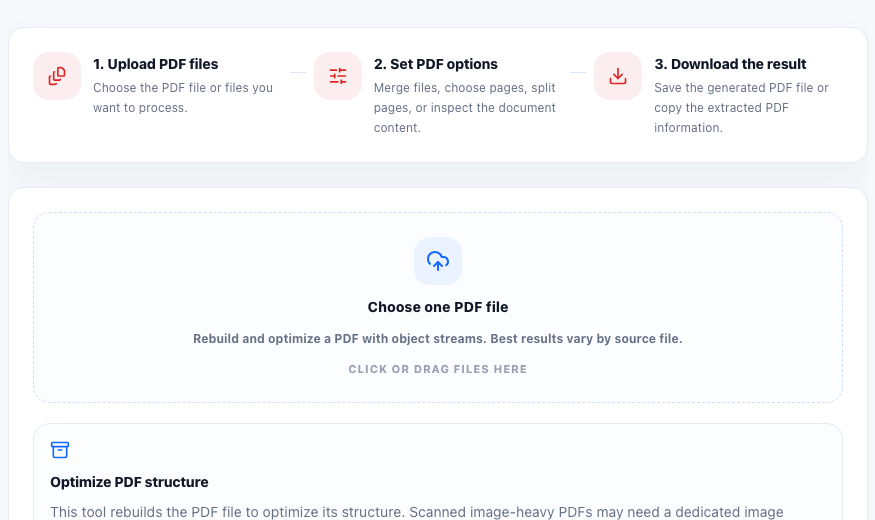
A PDF file can become large because of scanned pages, embedded images, fonts, metadata, or repeated document objects. When you need to email a document, upload it to a form, or keep a shared file lightweight, an online PDF compressor is often the fastest first step.
When compression is most useful
PDF compression works best when the original file has room for cleanup. Text-heavy reports, forms, invoices, packets, and documents with duplicated internal objects often compress cleanly. Image-heavy scans may need a dedicated image recompression workflow, but rebuilding the PDF is still a useful first check.
- Email attachments that exceed a size limit.
- Application forms or school documents that need a smaller upload.
- Reports, invoices, and packets that should download faster.
- PDFs that need to be archived with less storage overhead.
A simple PDF compression workflow
Open the Compress PDF tool, choose one PDF file, run the compression step, and download the result. After downloading, compare the file size and open the new PDF to confirm that the content still looks correct. If the file is a scan with heavy images, consider reducing image size before creating the PDF.
Useful follow-up tools
After compressing a PDF, you may want to merge it with other documents, count the pages before sending it, inspect metadata, or convert PDF pages to images for previews. Keeping these tools connected makes the PDF workflow faster than moving between separate desktop apps.
FAQ
Can I compress a PDF without losing quality?
Some PDFs can be reduced by rebuilding structure without changing visible content. Image-heavy PDFs may require image recompression, which can affect visual quality depending on settings.
Why is my PDF still large after compression?
Scanned pages, high-resolution images, embedded fonts, and complex graphics can keep a PDF large even after structural optimization.
What should I check after compressing a PDF?
Open the result, review important pages, compare the file size, and confirm that forms, images, and text still appear as expected.