How to Send Only the Required Pages From a Large PDF
Clean up a PDF before sharing it by splitting or extracting only the pages someone actually needs.
Open Split PDF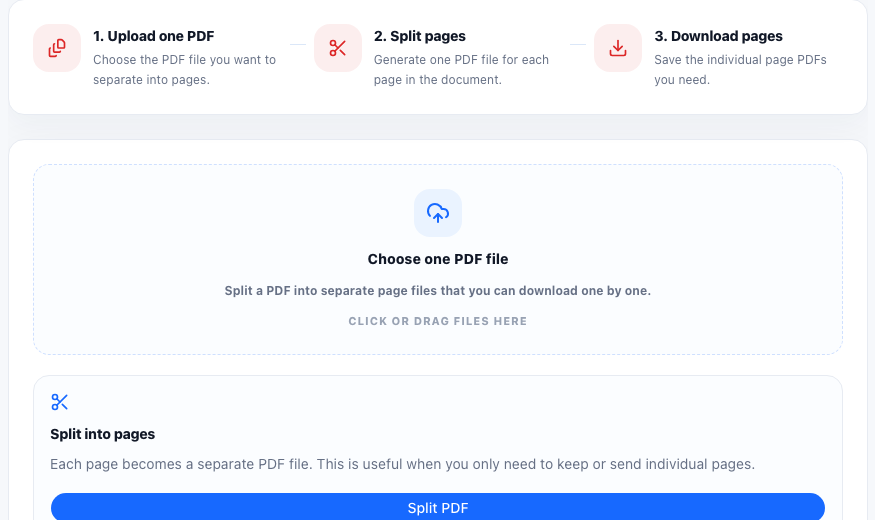
A PDF often contains more than the recipient needs: cover pages, appendices, receipts, old forms, blank scans, or internal notes. Sending the whole file can create extra review work and may expose information that should not be shared.
The practical problem
This usually happens at the end of a workflow: a report is finished, an application packet is ready, or a scanned document has been combined, but only a few pages are relevant for the next step. The goal is not just to split a file. The goal is to create a smaller, clearer, safer PDF for a specific recipient or upload form.
A clean page-selection workflow
- Open the original PDF and identify the exact page range or individual pages needed.
- Use Split PDF when each page should become a separate file, or use Extract Pages when you need one smaller PDF with selected pages.
- Name the output clearly so the recipient understands what the file contains.
- Open the result before sending and confirm the page order, page count, and readability.
When splitting is better than compressing
Compression reduces file size, but it does not remove irrelevant pages. If the PDF has extra sections, splitting or extracting pages first usually creates a cleaner result. Compress the final smaller file only if it is still too large for email or upload.
Related PDF cleanup steps
After selecting pages, you may need to delete blank pages, reorder pages, add page numbers, or merge the selected pages with another document. Treat PDF cleanup as a sequence of small checks rather than one large edit.
FAQ
Should I split a PDF or extract pages?
Use Split PDF when you want separate page files. Use Extract Pages when you want selected pages combined into one smaller PDF.
Will splitting change the original PDF?
No. The workflow creates new output files while the original PDF remains unchanged.
What should I check before sending the smaller PDF?
Check that the selected pages are complete, in the right order, readable, and free of unrelated pages.