How to Convert PDF Pages to Images Online
Convert PDF pages to PNG images for previews, thumbnails, slides, documentation, and visual sharing.
Open PDF to Images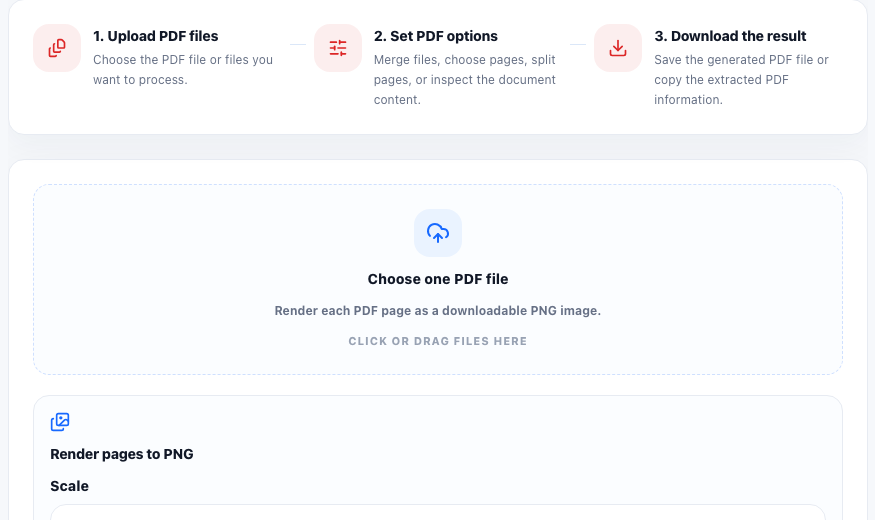
Converting PDF pages to images is useful when a PDF needs to be shown visually instead of opened as a document. PNG output works well for previews, thumbnails, slide decks, documentation, and quick page sharing.
When PDF to PNG is useful
- Creating preview images for a document.
- Sharing one PDF page in a chat or ticket.
- Adding a page screenshot to documentation.
- Preparing thumbnails for a gallery or dashboard.
- Turning a visual PDF page into an image for a slide.
Choosing the right scale
A higher render scale creates sharper images, but it also creates larger PNG files. Use a smaller scale for thumbnails and a higher scale when the image needs to be readable in a report or presentation.
Preview, stitch, and compress converted pages
After conversion, each PDF page appears as an image preview instead of only a download link. Open any page in a larger preview to check readability before saving it.
- Select the converted pages you want to combine.
- Choose vertical stitching when you need one long document-style image.
- Choose horizontal stitching when you want pages side by side for comparison.
- Preview the stitched image before downloading it.
- Compress the stitched image with quality and max-width controls when the final image is too large.
Related PDF workflows
Before converting, you may want to extract only selected pages, delete unnecessary pages, or reorder a PDF. After converting, you can use individual images in documentation, stitch selected pages into one combined image, or compress the stitched output before sharing it.
FAQ
Is PDF to PNG better than PDF to JPG?
PNG is usually better for text, UI screenshots, and sharp edges. JPG is smaller for photo-heavy pages but may blur text.
Can I convert every page of a PDF?
Yes. The PDF to Images tool renders each page as a separate PNG image with a preview and download option.
Can I combine converted PDF pages into one image?
Yes. When multiple page images are available, select the pages you need and stitch them vertically or horizontally into one image.
Why are the output images large?
Higher render scale and detailed pages create larger images. Lower the scale for smaller page images, or compress the stitched image if you combine multiple pages.